Custom Login Page
This guide walks you through the process of creating a custom login page in RunMyProcess. The login page will allow users to sign in with their RunMyProcess username and password.
⚠️ Important: Only administrators can configure a custom login page.
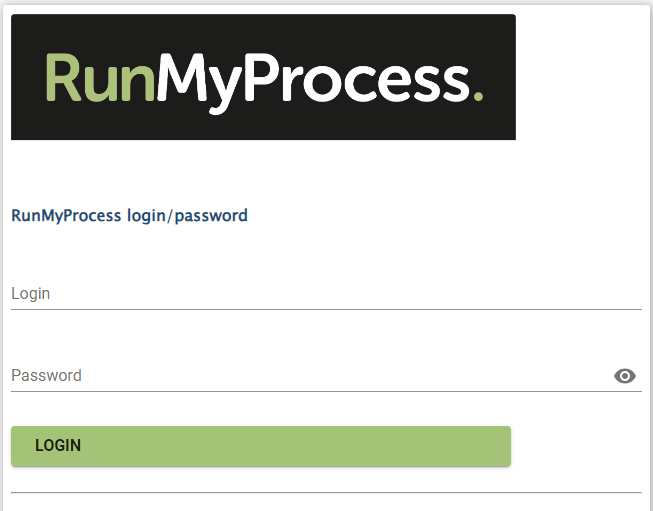
The end result will look similar to this:
1 .Create the project
- Navigate to the Pojects module and create a new project named “Login Page.”
- This project will serve as the foundation for your custom login interface.
2. Create the web interface
- Inside your new project, create a Web Interface called “Login Page.”
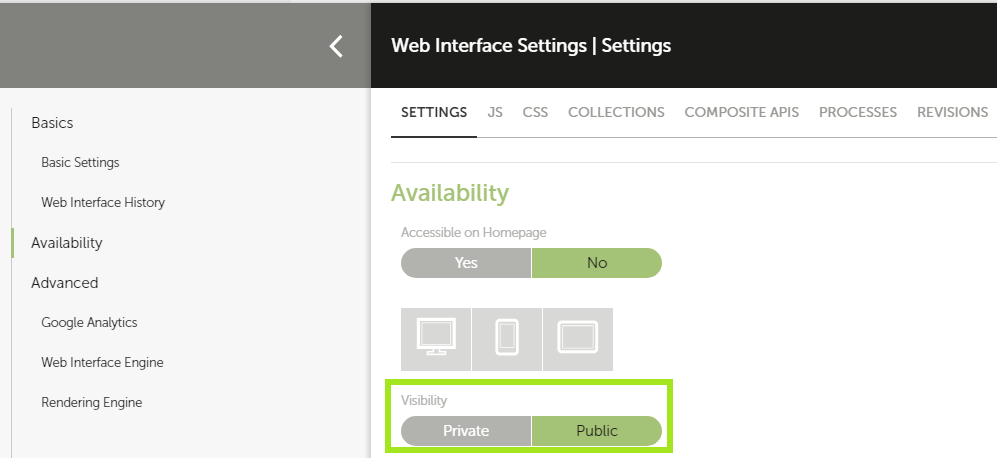
- Set the Visibility of this interface to Public so that it can be accessed by users who are not yet authenticated.
3. Add a stylesheet
To give your login page a polished look, you can use either this stylesheet or your own custom one.
- Go the web interface settings and select the CSS tab.
- Click the Add Existing CSS button.
- Select Insert File from URL or select an existing file.
- Paste the stylesheet URL and confirm.
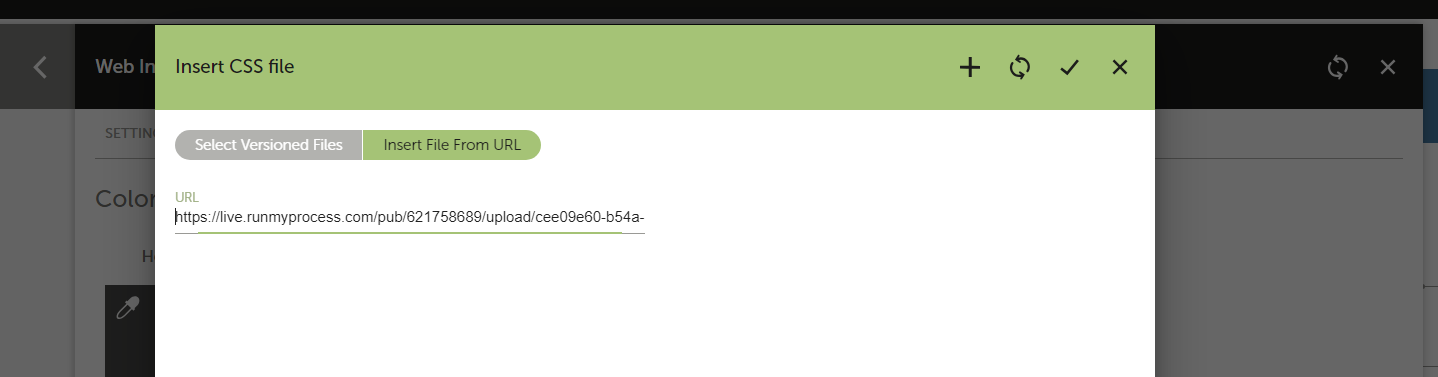
This ensures that your login page has consistent branding and layout.
4. Design the web interface
Now we will configure the visual elements of the login page.
Go to the Design section of your web interface and add the following widgets:
- Company Logo: Add the public version of your company’s logo to reinforce brand identity.
-
Page Title: Insert an HTML widget and add this title:
<div class="sectionTitle">RunMyProcess login/password</div> -
Login Input Field
- Add a Text Input widget.
- Label: Login
- Variable:
login
-
Password Input Field
- Add a Password Input widget.
- Label: Password
- Variable: `password
-
Sign-In Button
- Add a Login Button widget.
- Label: Sign in
- Configure it to authenticate using the variables:
- Login:
login - Password:
password
- Login:
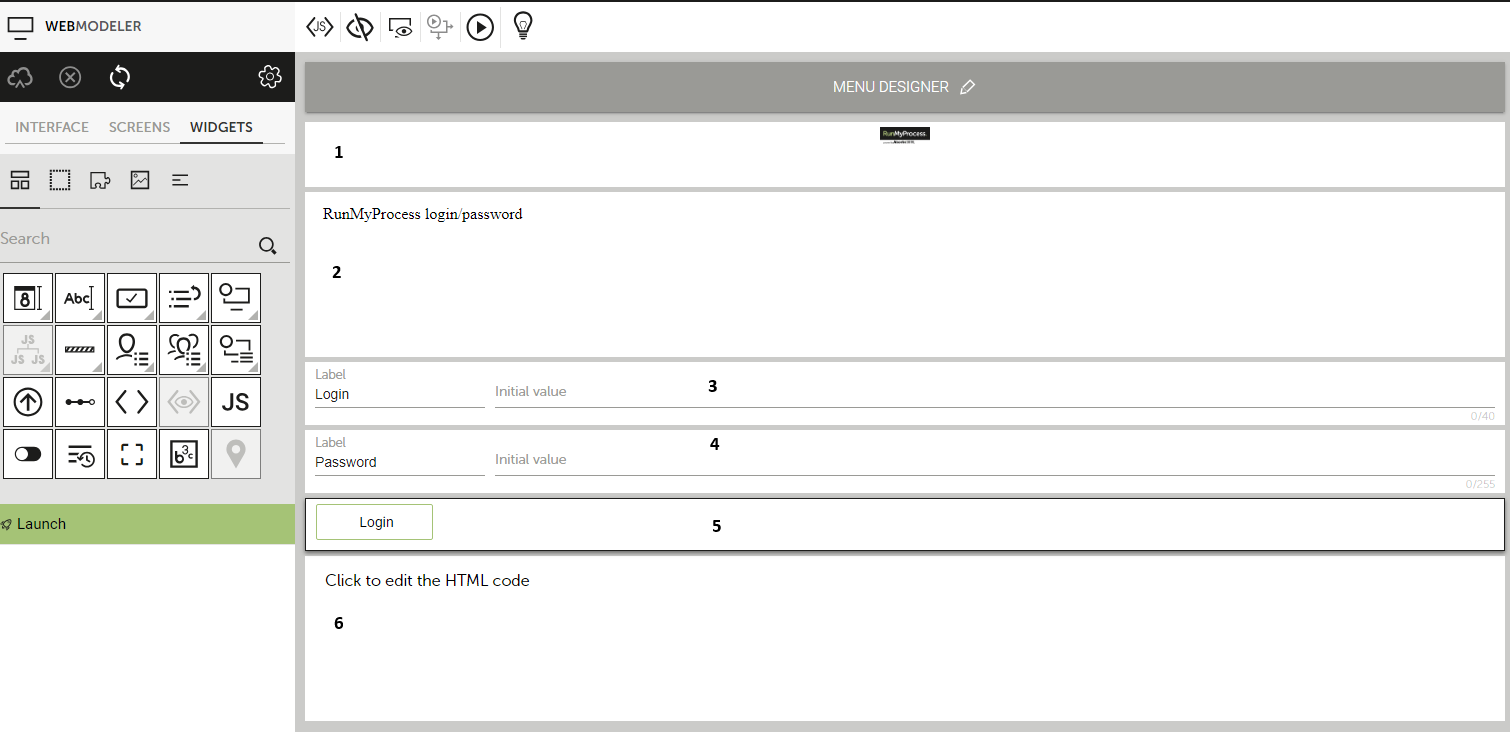
By the end of this step, your interface will visually resemble a standard login form with your company branding.
5. Publish the Login Page
Once the design is ready, you need to make it available for use:
-
Go to the Version tab of your project.
Click New Version.
Check the option Include all resources and save.
-
Switch its Execution Mode to LIVE.
6. Configure as the Default Login Page
Finally, link your custom login page to your account’s authentication settings:
- Navigate to the Account module, click on the Authentication tab and navigate to Authentication Methods.
- In the Live section, choose the method Login/Password.
- Select your web interface Login Page as the default login page.
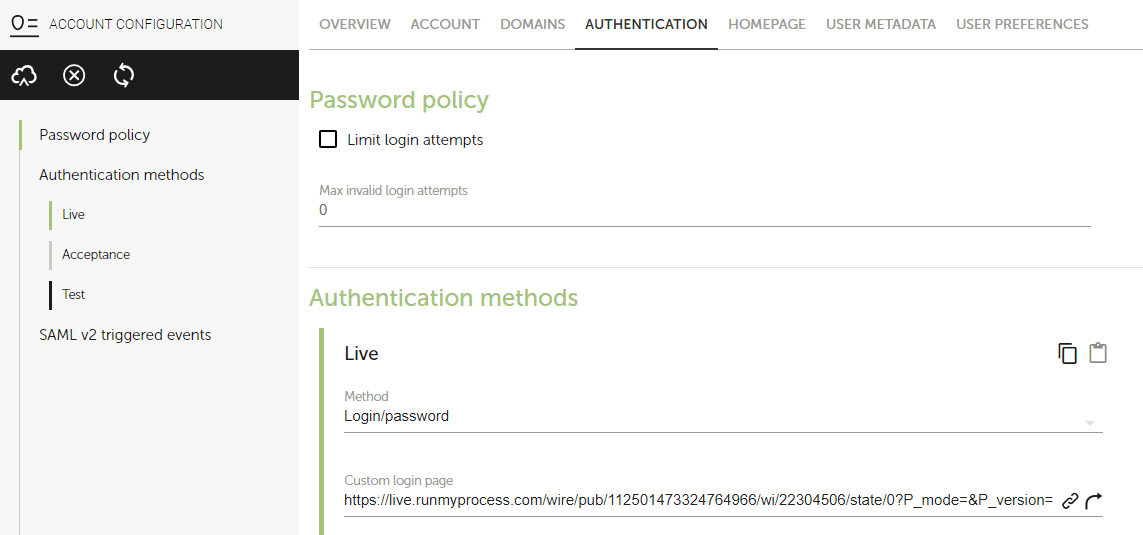
Click Save to apply the configuration.
All Done!
You’ve now created a fully functional custom login page. Test it by signing out and accessing your account, you should see your new login page in action.